✍️ Sign a PDF on your iPhone
Signing used to mean printing a page, signing it, scanning it back and hoping the result was legible. On an iPhone it is a finger and ten seconds. DocBeam keeps your signature so you draw it once, then place it on any document afterwards — and keeps the original page underneath, so a signature is never a one-way decision.
Free · No account · Nothing leaves your device
When this helps
A contract or agreement arrives by email
Open it, sign it, send it back in the same thread — no printer, no scanner.
A form needs initials in several places
Place the same saved signature as many times as the page needs.
You want your real signature, not a typed name
Photograph the signature you already use on paper and DocBeam lifts it off the background.
How it works
- Open the PDF in DocBeam and tap Sign.
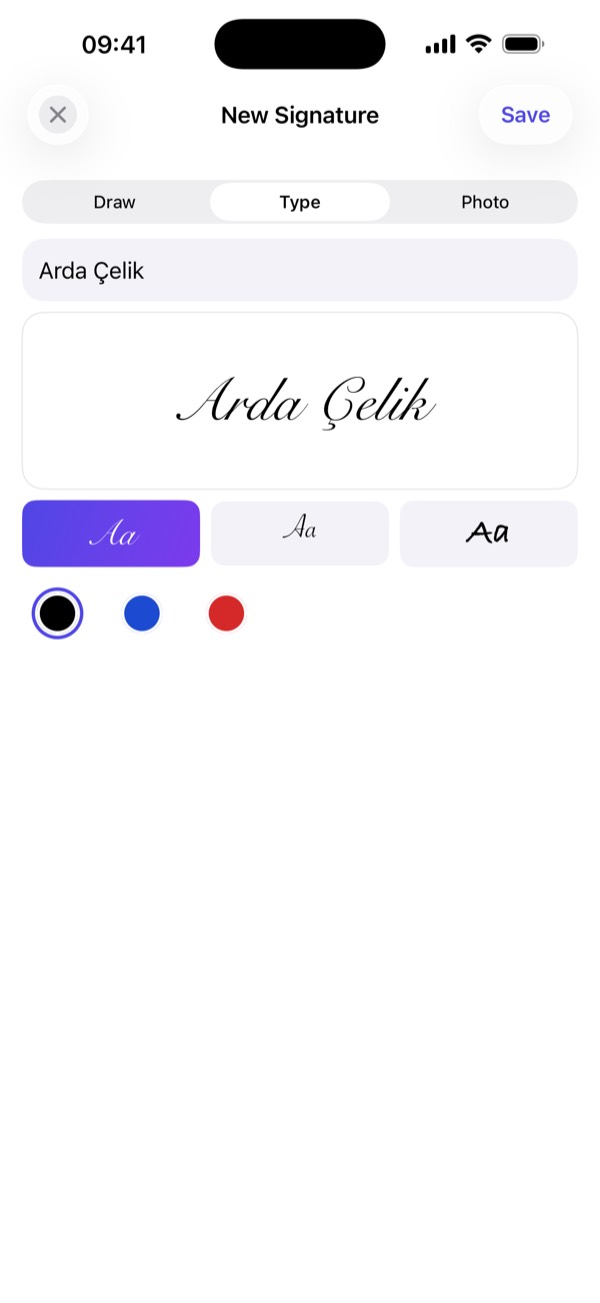
- Draw with a finger, type your name in a handwriting face, or import a photo of a signature.
- Drag it into position and resize it — the same signature can be placed as often as you need.
- Flatten and share. The original page is kept, so you can revert at any point.
A look at it
What happens to your file
Your signature is stored on the device alongside your documents. It is never uploaded, and the signed file is written locally.
Questions
Is the signature legally valid?
It is an electronic signature, accepted for most everyday agreements. Contracts that require a qualified digital certificate are governed by your local rules.
Can I undo a signature?
Yes. DocBeam keeps the untouched original, so you can revert even after signing and sharing.
Can I use the signature I already have on paper?
Yes. Photograph it and DocBeam removes the paper background, leaving the ink.
Does the signature stay for next time?
Yes. Draw or import once and it is saved for every document afterwards.
More things you can do
Free · No account · Nothing leaves your device